“YORU” is open-source software for animal behavior detection using object detection. YORU classifies animal behaviors as "behavior objects."
Support the development of YORU.
Sponsor©Copyright 2026 Hayato M. Yamanouchi
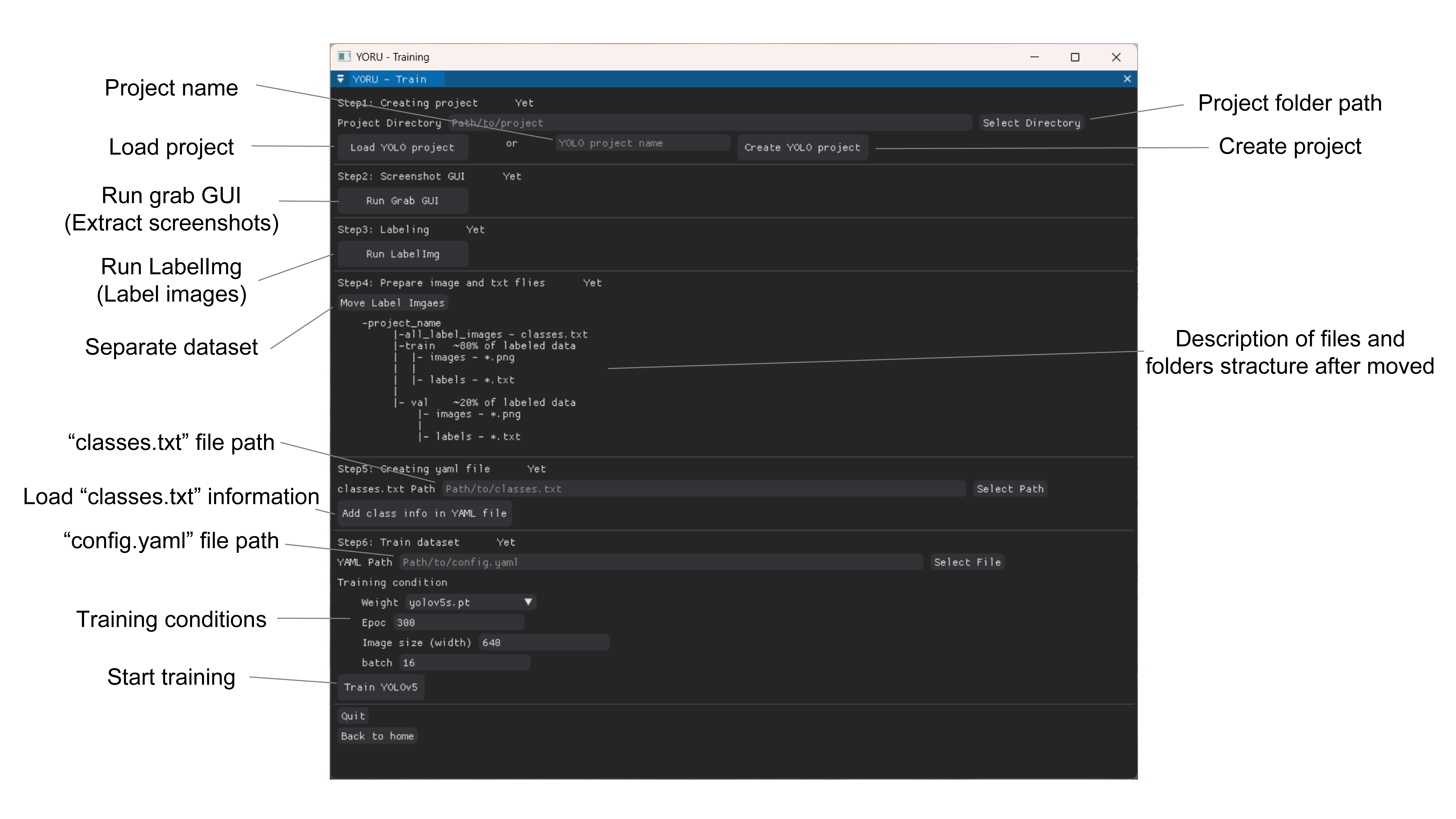
Run YORU’s Training sub-module.
Create a project folder. (Step0)
Folders and condition yaml file will be created.
To continue with an existing project, select its folder and push “Load YORU project”.
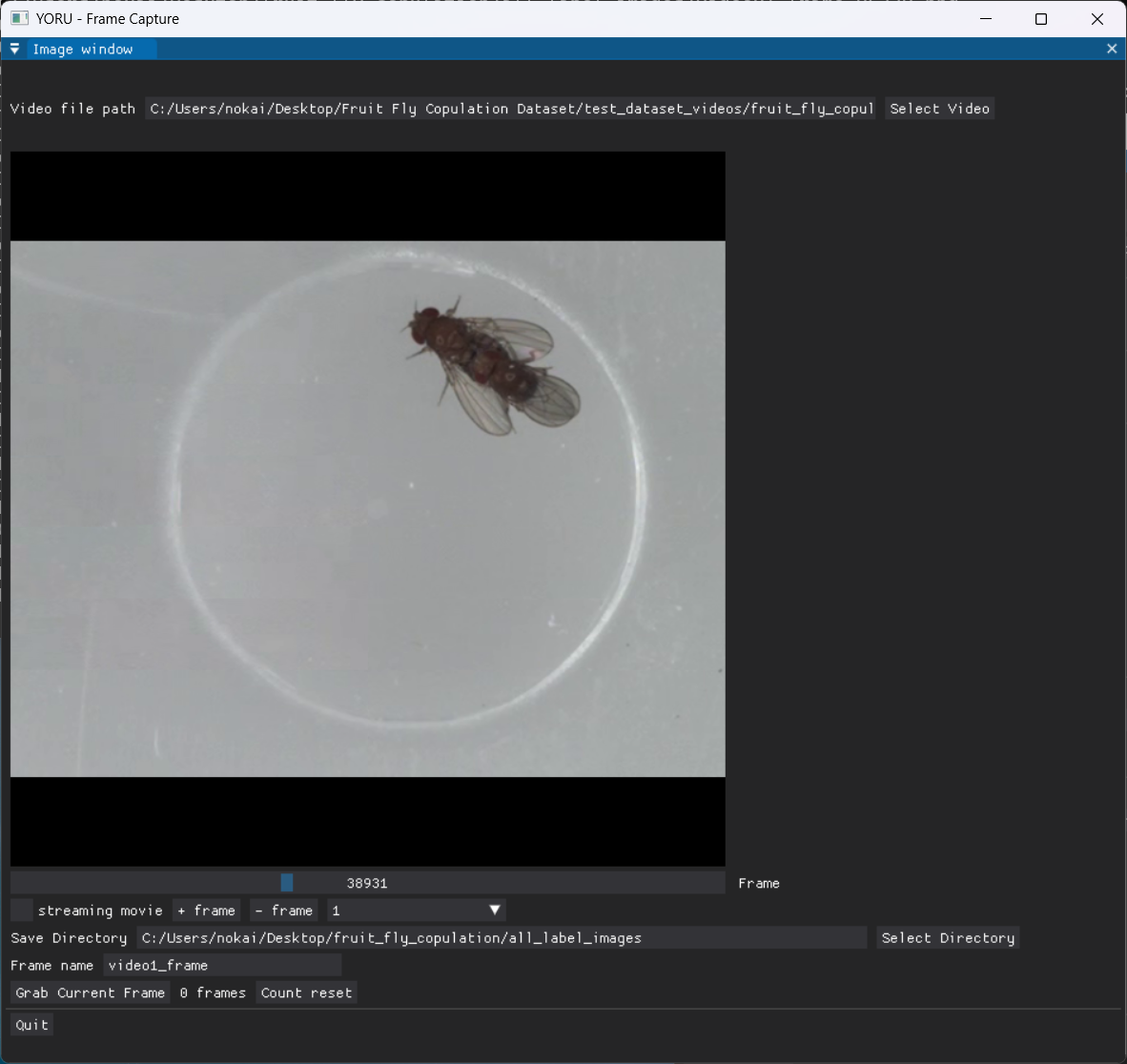
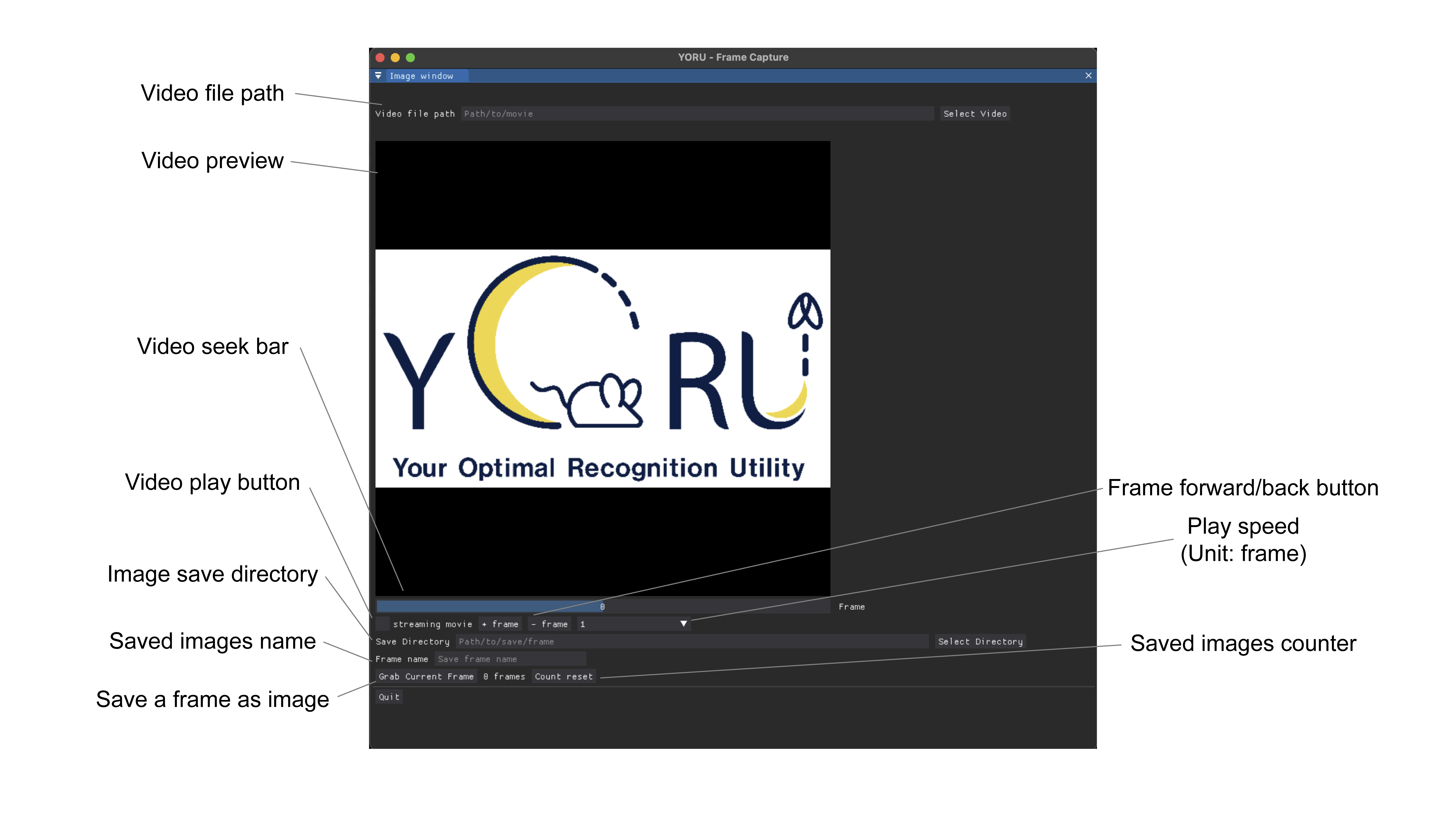
Extract frames for labeling using Grab GUI. (Step1)
I. Select a video in the Video file path in the Grab GUI.
Ⅱ. Select Save directory. (Basically, all_label_images in the project folder is a good choice.)
Ⅲ. Decide the grabbed frame name.
IV. Cut out the screenshot.
i. Play video with Streaming movie.
ii. Arrow keys to go forward and back.
iii. Grab Current Frame or Alt key to save frame.
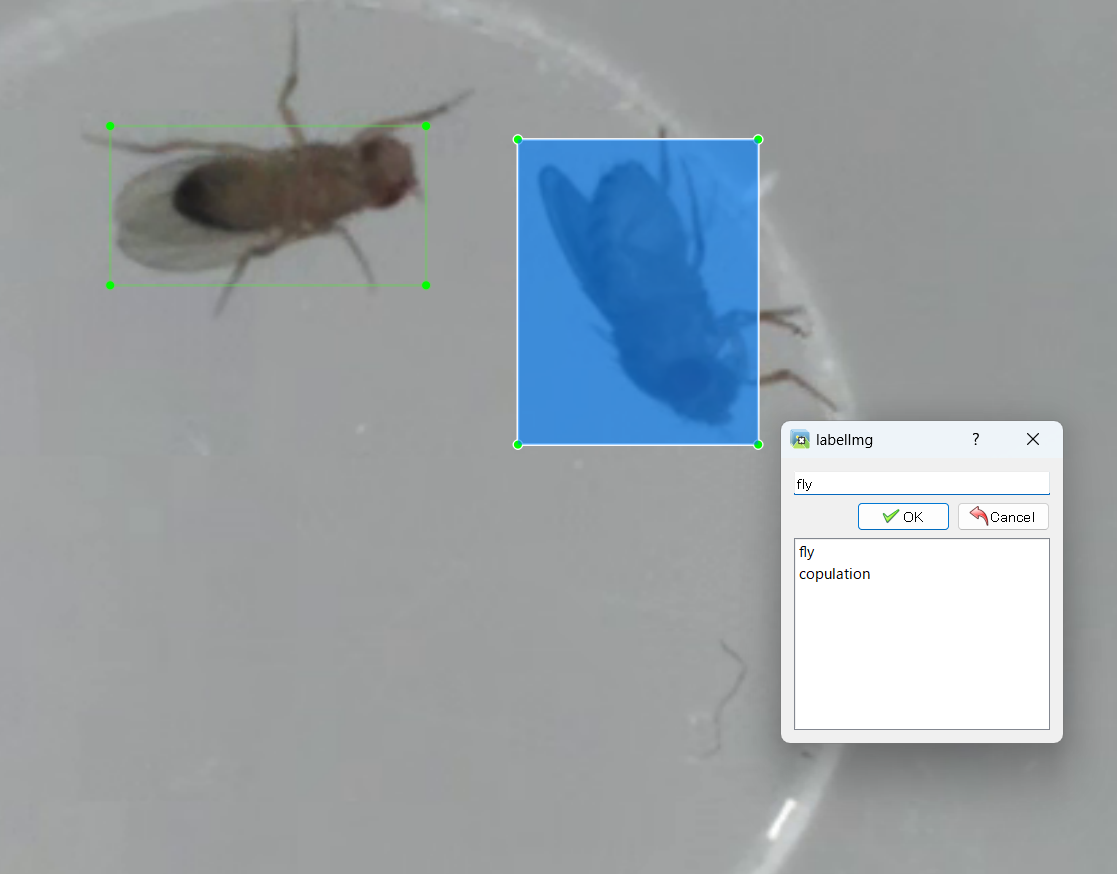
Run LabelImg and label the frames. (Step2)
The detailed documents are accessible in LabelImg.
Save format is done in YOLO.
It is easier to do so if Auto Save mode is turned on in the View tab.
Move all images and txt files to “all_label_images” folder of the project. (Step3)
Push “Move Label Images” button. (Step4)
Images and text files are copied to the train and val folders in a 4:1 ratio.
Select classes.txt file and push “Add class info in YAML file”. (Step5)
The information in classes.txt will be entered into the
config.yamlfile.
Check the “YAML Path” and select training conditions, such as the model, epochs, Image Size, Batch and Device.
See Choosing a model and Choosing the device below.
Start training by pushing “Train Model”.
The progress bar shows the current epoch. In the terminal, you should check the initiation of training.
If training fails, YORU shows an error message instead of closing silently. The full error is also written to
~/.yoru/logs/yoru.log(%USERPROFILE%\.yoru\logs\yoru.logon Windows).
From v1.1.2, the Training GUI can train these models:
| Model family | Options |
|---|---|
| YOLO | YOLOv5, YOLOv8, YOLO11 — sizes n / s / m / l / x |
| RT-DETR | sizes l / x |
| Faster R-CNN | ResNet50-FPN backbone |
| Mask R-CNN | ResNet50-FPN backbone |
| SSD | VGG16 backbone |
The default is YOLOv5s, the model used in the YORU paper.
YOLOv8, YOLO11 and RT-DETR are trained with the ultralytics package. Faster R-CNN, Mask R-CNN and SSD are trained with torchvision.
The Video Analysis and Real-time Process sub-modules recognise the model type from the weights file, so you can use any of these models there without extra settings.
| Model | Weights |
|---|---|
| YOLOv5 | <project>/exp/weights/best.pt |
| YOLOv8 / YOLO11 / RT-DETR | <project>/train2/weights/best.pt |
| Faster R-CNN / Mask R-CNN / SSD | <project>/train/fasterrcnn_best.pt (maskrcnn_best.pt, ssd_best.pt) |
Repeat YOLO and RT-DETR runs are saved to new folders (
exp2,exp3, … /train3,train4, …), so check the folder of the run you mean. The ultralytics runs start attrain2becausetrain/already holds the training images.
Torchvision runs write into the
train/folder each time and overwrite the previous weights. Copy them elsewhere before you retrain.
The Device selector chooses where training runs:
| Value | Meaning |
|---|---|
auto |
CUDA, then Apple MPS, then the CPU (default) |
cuda |
NVIDIA GPU |
mps |
Apple Silicon GPU |
cpu |
CPU only (much slower) |
The text next to the selector shows the device that will actually be used. If the requested device is not available, YORU falls back to the next best one. See Install for the YORU_DEVICE environment variable.
This occurs when the mini-batch during training exceeds the GPU’s memory capacity. Try a smaller batch size.
More questions are answered on the Q and A page.