User guide
Explore: choose detections
Go to a frame, see what the loaded model detects there, and turn the detections you want explained into events. Results come back here, too.
Move through a video
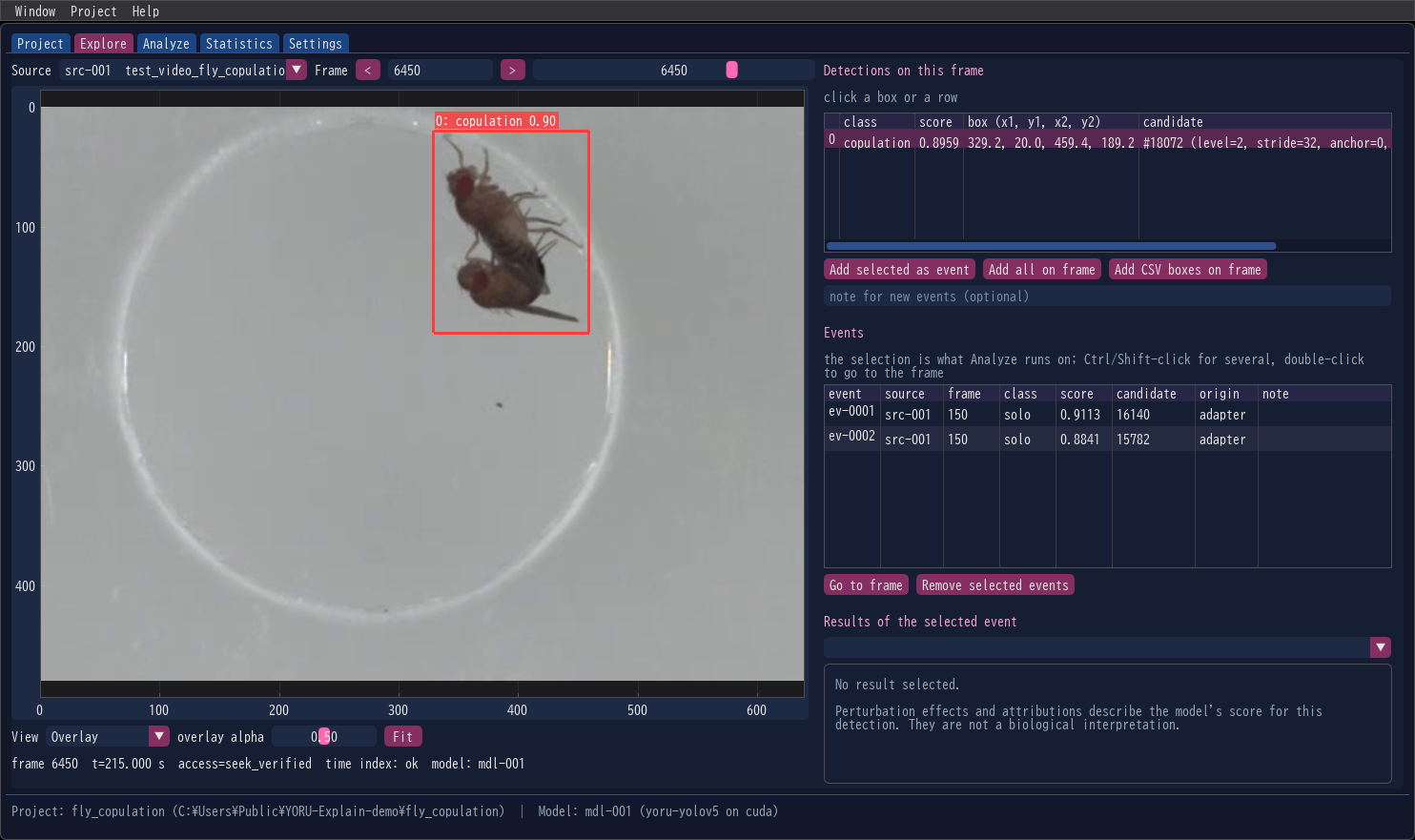
Choose the Source, then go to a frame with the slider, the < and > buttons, the ← → keys, or by typing its number. Frames are numbered from 0 in decoding order, exactly as YORU’s analysis numbers them, so a frame number from a YORU CSV is the same frame here. The line under the image shows the frame, its time, how it was reached (sequential, seek_verified, …), and the model that detected on it.
The image is a plot whose axes are frame pixels:
- the mouse wheel zooms, dragging pans, right-dragging zooms into a box;
- a double-click, or Fit, shows the whole frame again.
Boxes are drawn in three colours:
| Boxes | |
|---|---|
| yellow | what the loaded model detects on this frame |
| red | the selected detection |
| light blue | the boxes of an attached YORU detections CSV |
Rotated boxes of OBB models are drawn as rotated rectangles.
Turn detections into events
An event is one detection on one frame, chosen for explanation. Select a detection by clicking its box or its row in Detections on this frame (the row shows its class, score, box and pre-NMS candidate), then
| Button | Adds |
|---|---|
| Add selected as event | the selected detection |
| Add all on frame | every detection of this frame |
| Add CSV boxes on frame | the light-blue boxes of the attached CSV; each is found again with the loaded model when it is analysed (same class, IoU ≥ 0.9) |
A note typed in the field below the buttons is stored with new events.
The Events table lists every event of the project. The selection is what Analyze runs on: click one event, or Ctrl/Shift-click several. Double-click an event (or press Go to frame) to go to its frame; Remove selected events removes them.
What an event remembers
The frame (with a hash of its pixels), the detection’s box, class and score, and the pre-NMS candidate it came from. A run decodes the frame again, checks the hash, and finds the same detection again before measuring anything (What is measured).
Look at results
When an event has been analysed, its runs are listed under Results of the selected event. Choosing one shows the map on the frame and, in the panel below, what was explained, the settings, the numbers and the status. A double-click on a result row in Analyze or Statistics brings you here with it selected.
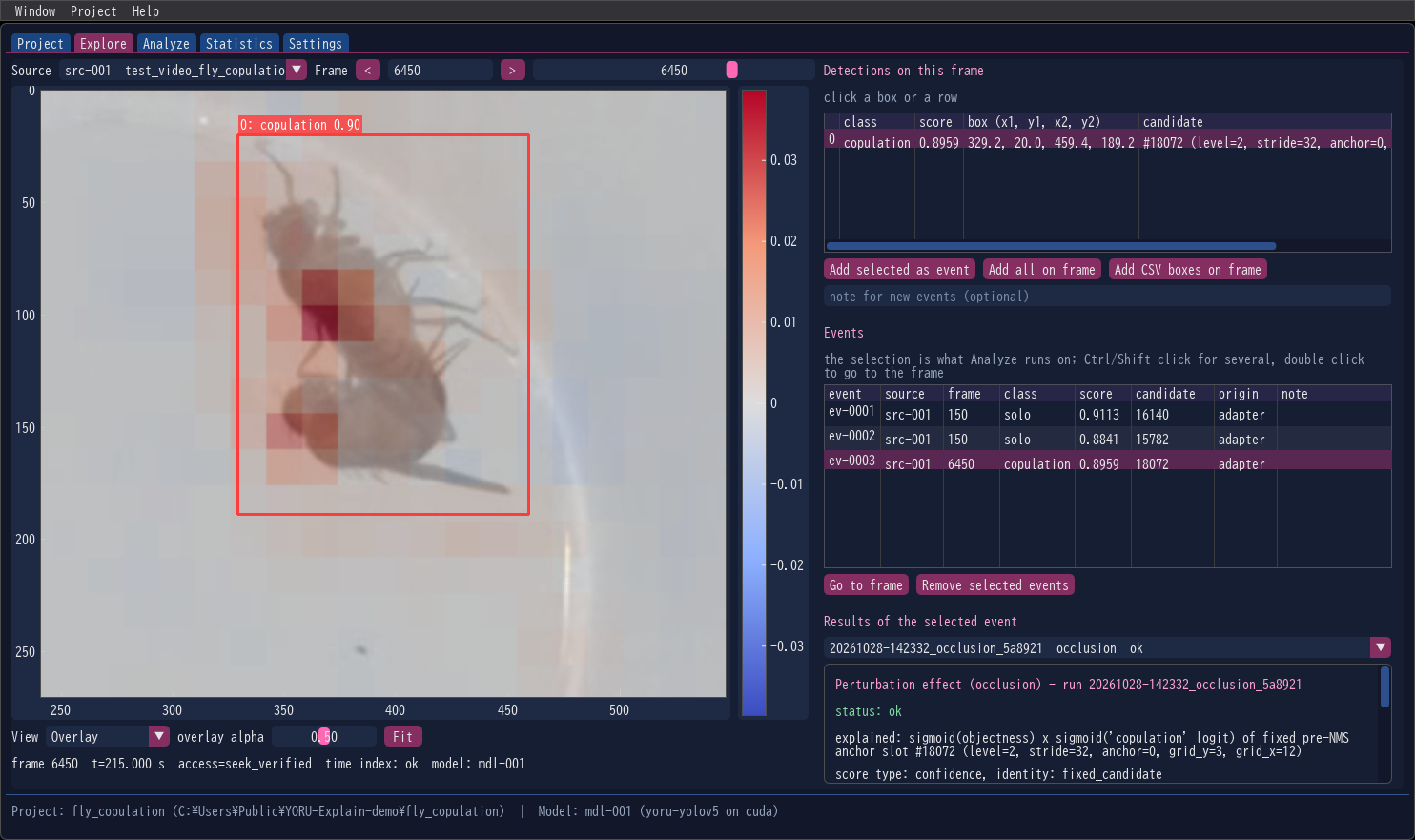
View chooses how:
| View | Shows |
|---|---|
| Original | the frame with its boxes |
| Heatmap | the map alone |
| Overlay | the map over the frame; overlay alpha sets its opacity |
| Side by side | frame, map and overlay next to each other |
The colour scale beside the image belongs to the map on display:
- Occlusion maps are signed, on a diverging scale centred on 0: red where hiding a patch lowers the score, blue where it raises it, white for no change.
- Grad-CAM maps are non-negative, on viridis (dark to yellow).
Moving the mouse over the map shows its value at that pixel, or (not scored) where no patch was counted.